VLAB Quickstart Guide
Info
The VLAB is a remote testing environment. It will let you test designs that you have already constructed, but you will need a way to access the development tools. You can install them yourself, or use a remote desktop environment. Please see this page for details.
Current Status of the VLAB
Intro
To use the VLAB you need a Virtual Lab keyfile. If you don’t have one and think that you should, speak to Ian.
Download the VLAB script and run it. You must run the VLAB software from the location where you are running the Xilinx tools. i.e. if you have installed them on your computer, run them on your computer. If you are running on the VDS, download and run the tools there.
cd Downloads
python vlab.py --user yourusername --key yourkeyfile.vlabkey
yourusername is your IT services username (i.e. abc500).
On Linux:
wget  https://raw.githubusercontent.com/RTSYork/VLAB/master/vlab.py
chmod +x vlab.py
./vlab.py --user yourusername --key yourkeyfile.vlabkey
The script requires Python 3 so install it if you need to. The script defaults to requesting a vlab_zybo-z7 board (the Zybo Z7-10 boards used in EMBS). It should run, request an FPGA board, connect to a free one, reset it ready for use, and eventually show you a connected terminal. Please close the terminal when you are done, see the section below on how to exit.
If you are running the tools on your home machine, you need to set up some SSH configuration so that your computer can see the VLAB servers. Ensure that you have performed the steps in the Connecting through the SSH Gateway section.
Exiting the VLAB
Please close your VLAB connection when you are not using it so that other students can use the board. The VLAB terminal window is running screen. To close it, press and release Ctrl-a, then press k and confirm with y.
Using Vitis with the VLAB
You probably want to use the VLAB from Vitis most of the time. First connect to a VLAB board. Then in Vitis in your application component go to Settings -> launch.json and next to “Target Connection” click new. Give it a sensible name like vlab and set the following:
Hostname: localhost
Port: 12345
“Test connection” should report that Vitis could communicate with the FPGA via the VLAB. If all is fine, click OK and ensure that Target Connection is now set to your new vlab connection.
And thats it! From now on, all interactions with that application will now go over the VLAB, and so to work local again, go back in and set Target Connection back to Local [default].
Using Vivado with the VLAB
Using the VLAB from Vivado is very similar. In Vivado click “Open Hardware Manager” in the Flow Navigator in the left-hand column. Then click “Open Target” | “Open New Target” in the Flow Navigator. In the Open wizard click Next, select Remote Server, Next, and use the settings from above. Click Next and the tools should connect and see a Zybo Z7:

Click Next and Finish. You can send bitfiles to the FPGA by selecting Program Device from the Flow Navigator.
Troubleshooting
The permissions on the key are too permissive
The SSH client requires that your private key is only visible to you and not to other users on the system. Depending on how you downloaded the key you might find that your permissions are too permissive. On Linux this is easily fixed by entering:
chmod 0600 mykey.vlabkeyOn Windows:
Right click your keyfile and select Properties.
Go to the Security tab, click Advanced.
Click Disable Inheritance and “Remove all inherited permissions from this object”.
Click Add and “Select a principal”.
Enter your username, which if you are on a lab machine will be IT services username (abc500) and click OK.
If it is your home machine it is whatever username you set up.
Click Full Control and OK.
It should look something like this:
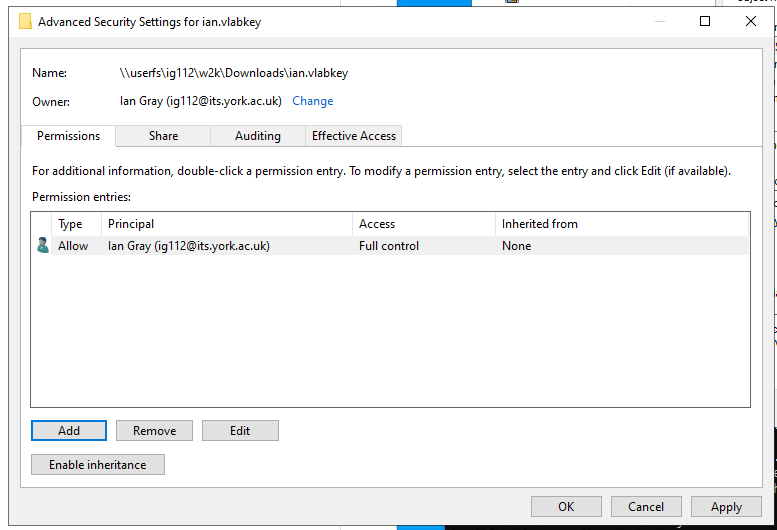
- Click OK, OK, and SSH should now be happy.
Host Keys have Changed
If you get a message about host keys changing (and you’re sure that nobody is actually trying to man-in-the-middle attack your connection), it’s likely that we’ve just updated the VLAB relay server since you last connected. Follow the instructions in the error message to clear the key from your known_hosts file. If you’re unsure about anything you can always email us for help.
Port is in use / Using the VLAB on a Shared Machine
If you’re connecting to the VLAB on a shared machine where multiple people might be connecting at once (e.g. from one of the department’s compute servers) you will need to specify a custom local port so that your connection doesn’t collide with another user’s. You can use the -l or --localport option to vlab.py to specify a port that is different to the default value (12345), then specify this in Vivado instead. Almost any port in the range 1024 to 65535 should work if it is free. For example:
python vlab.py -k mykey.vlabkey -l 20000 -u itsusername
Where itsusername is your ITS username, i.e. abc500.